
How to dynamically create post groups and collections
Use this when you want to analyze a subset of posts on their own and keep them together in a new collection. You'll can select posts in the post table, view them as their own dynamic group, and then create a collection with that group.
Select posts
Open the team workspace and click Posts to open the post table
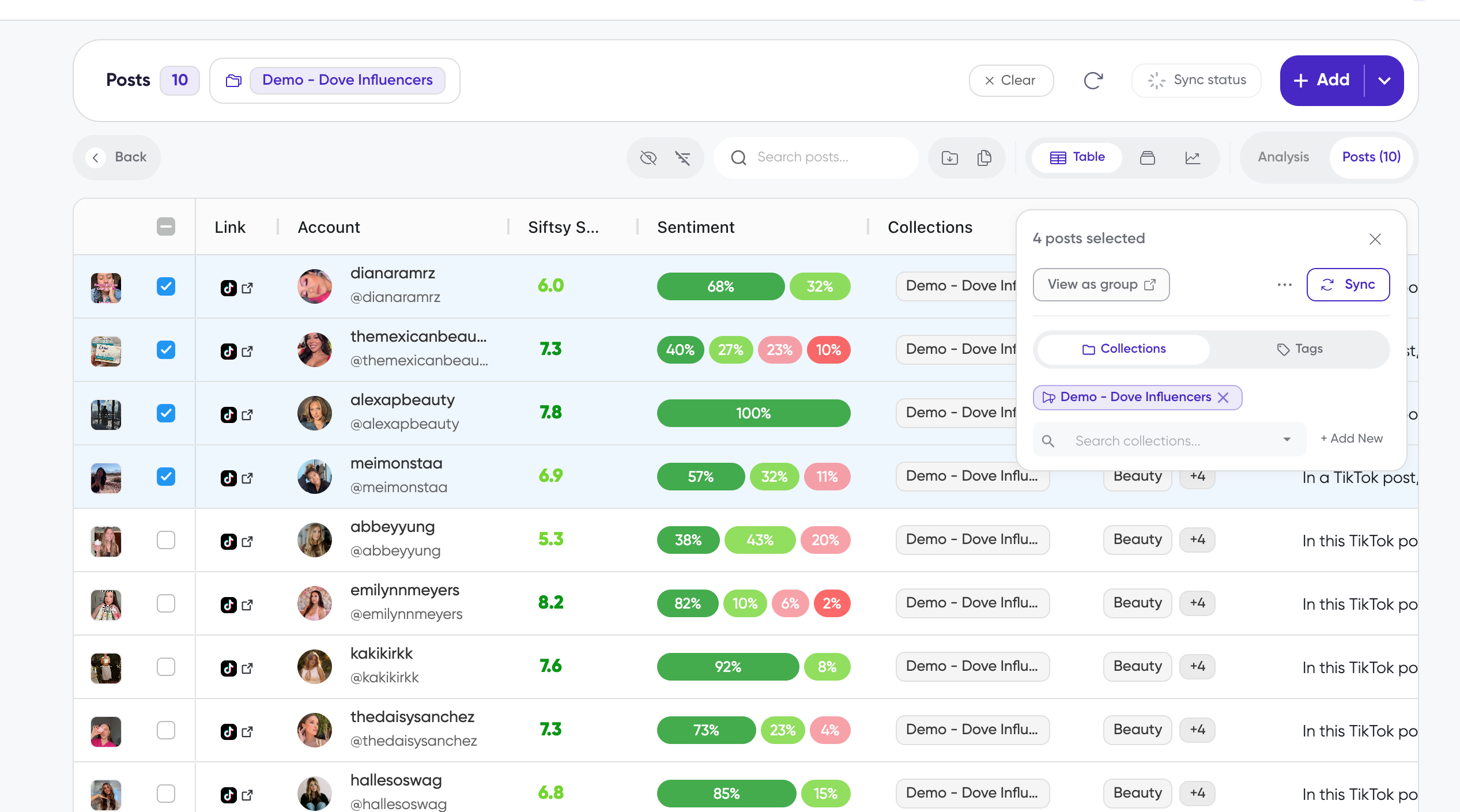
Select the posts you want to group
Use the checkboxes in each row to select individual posts
Use the checkbox in the table header to select every post
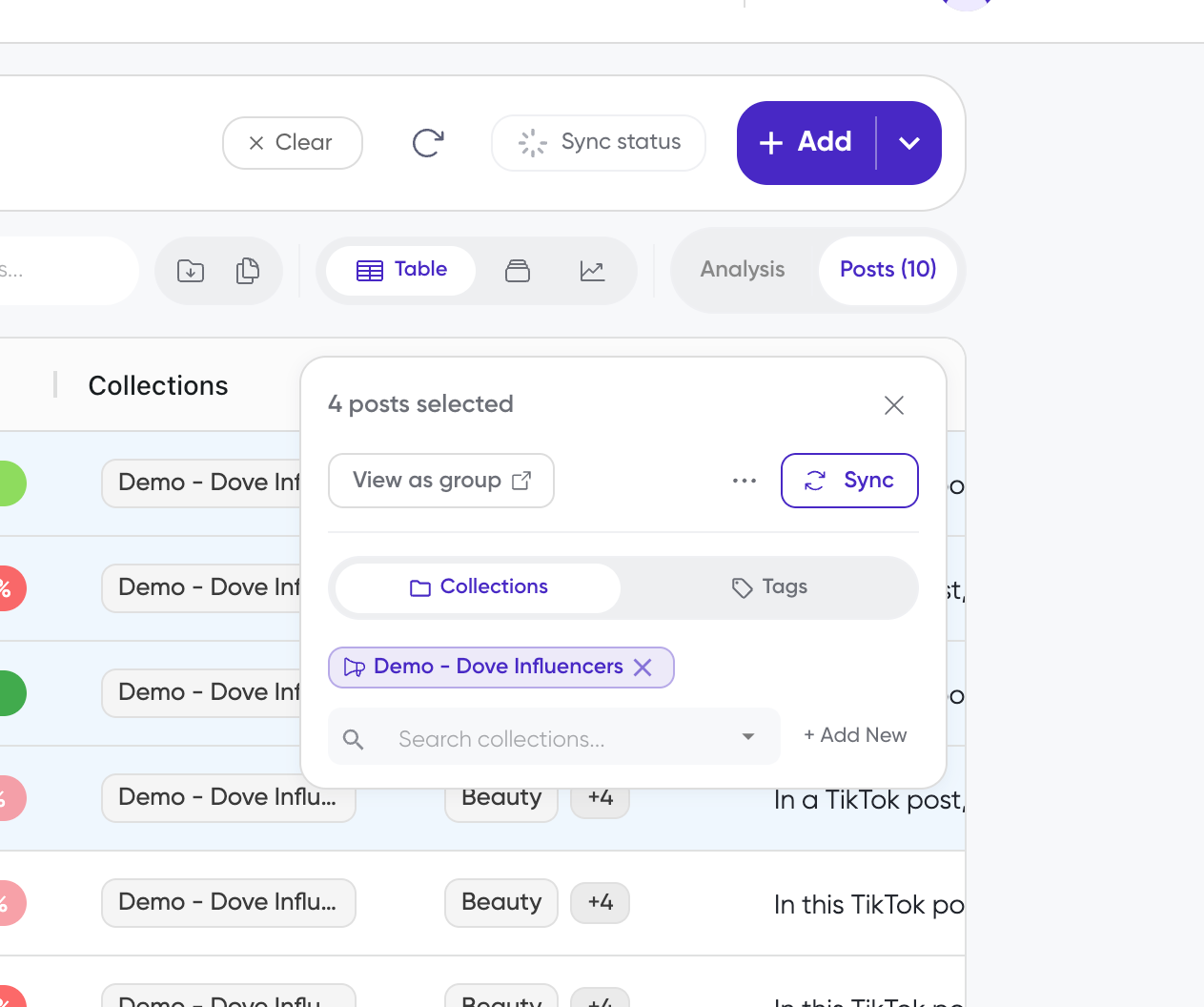
A selection panel appears on the right showing how many posts you've selected, such as 4 posts selected.
Analyze the group
View as group opens a temporary group scope, so your analysis covers only the selected posts.
In the selection panel, click View as group
When every visible post is selected, the control is disabled and shows All selected
Use the Analysis and Posts controls to switch between the group's analysis and its post list
The analysis is limited to the selected posts — posts outside the group are not included.
Save the group as a new collection
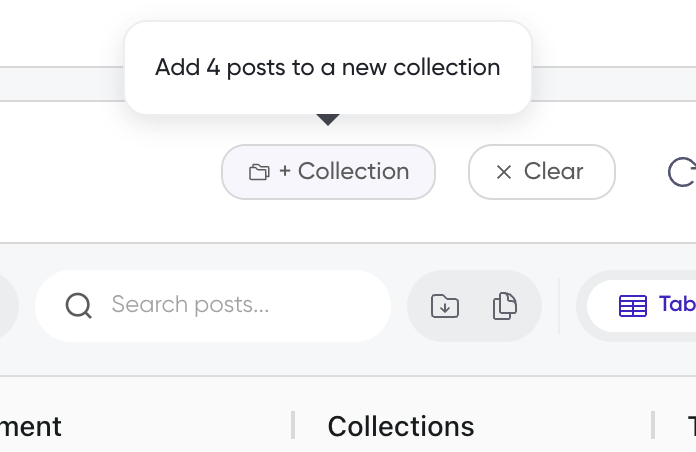
Saving the group creates a new collection that contains exactly the grouped posts. The group view is replaced by the new collection, and you stay in the Posts view.
In the group view, click + Collection (on smaller screens the button shows as +)
Enter a name in the Collection Name field
Optionally choose a collection type and color
Click Next and review the confirmation
Click Create Collection
To add the selected posts to an existing collection instead, use the Collections section in the selection panel — see How to add posts to multiple collections.
Save when you leave the group
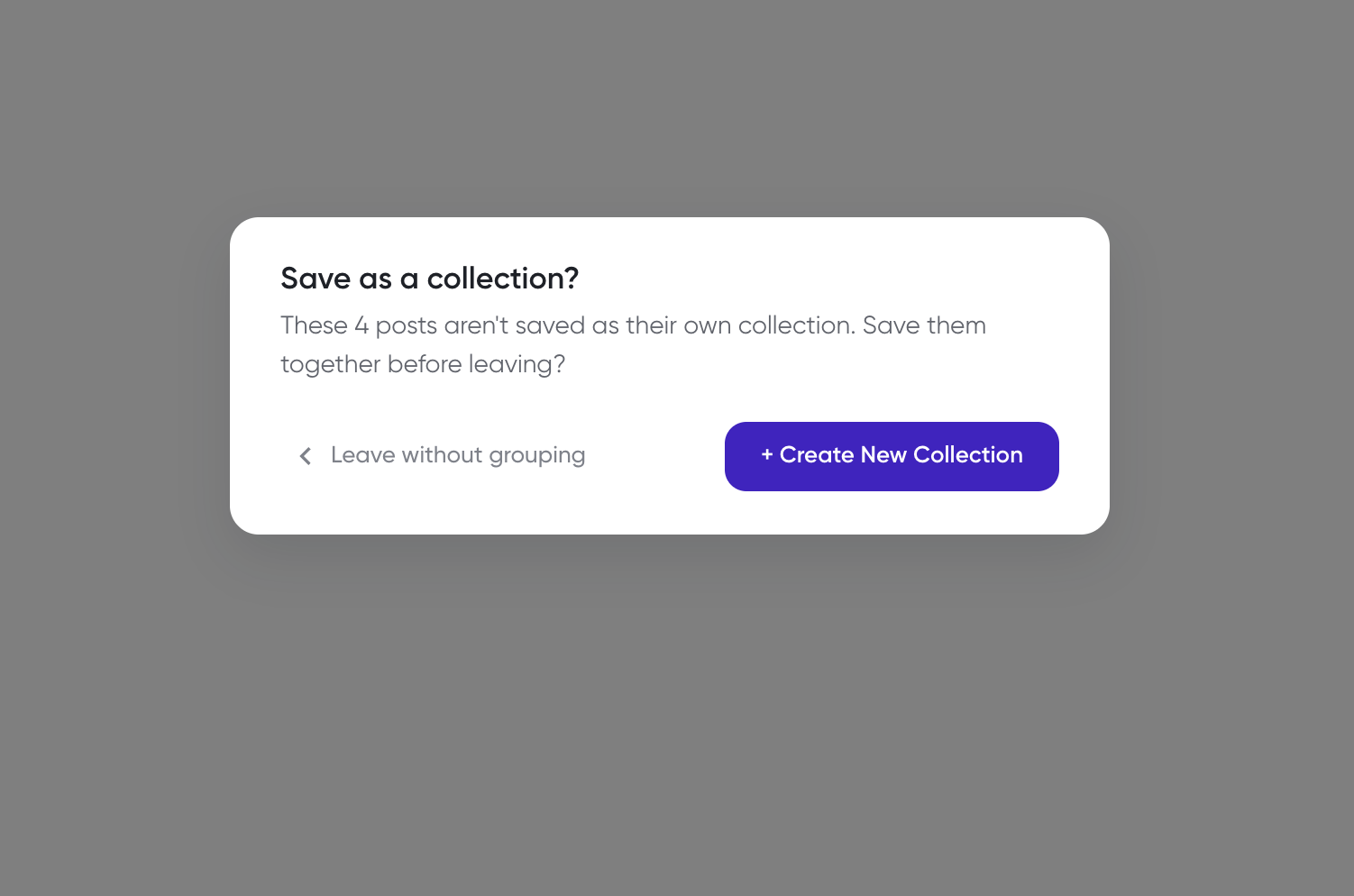
If you click Back before saving the group, Siftsy asks whether you want to keep the posts together.
Click Back to leave the group view and return to the view you came from
In the Save as a collection? prompt, choose an option
Leave without grouping returns without saving and clears the group and its filters
+ Create New Collection opens the collection dialog so you can save the posts together
What's next
Learn how to rename, organize, or archive the collection in How to edit collections. To build a full analysis from a saved collection, see How to start analyzing comments.