
How to automate post syncs and monitor accounts
Use this guide to keep your analyses current without syncing by hand. Automations re-sync posts you've already analyzed (Watch posts) or add new posts from up to 5 accounts (Monitor account) on a schedule.
Automations use post credits. Each automation has a Monthly credit limit (100 credits by default), so you stay in control of spend.
Open Automations
Open Automations from your team workspace:
Top bar — Click the lightning-bolt Automate button next to Sync status
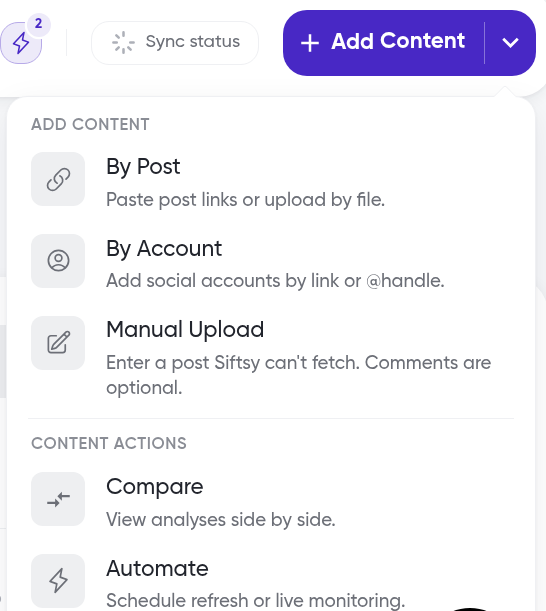
Add Content menu — Click the arrow next to Add Content, then under Content actions click Automate
Collection — Open a collection, click Actions, then click Automate
Post table — Select posts in a collection, then click Automate posts...
Add Content by account — Click Monitor next to an account in By Account
Review your automations
The Automations panel lists Active, Paused, and Past automations with their type, cadence, expiration, and status. A team can run up to 10 active automations at a time. If an automation reaches its credit limit, it pauses and shows a banner with Add credits, Resume, and View options.
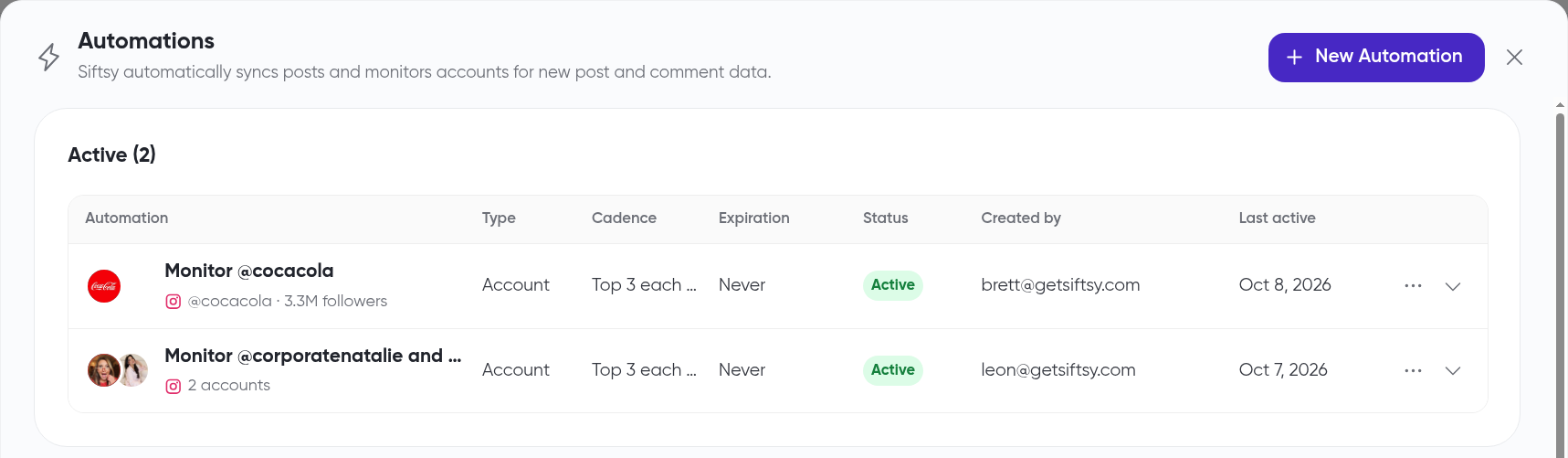
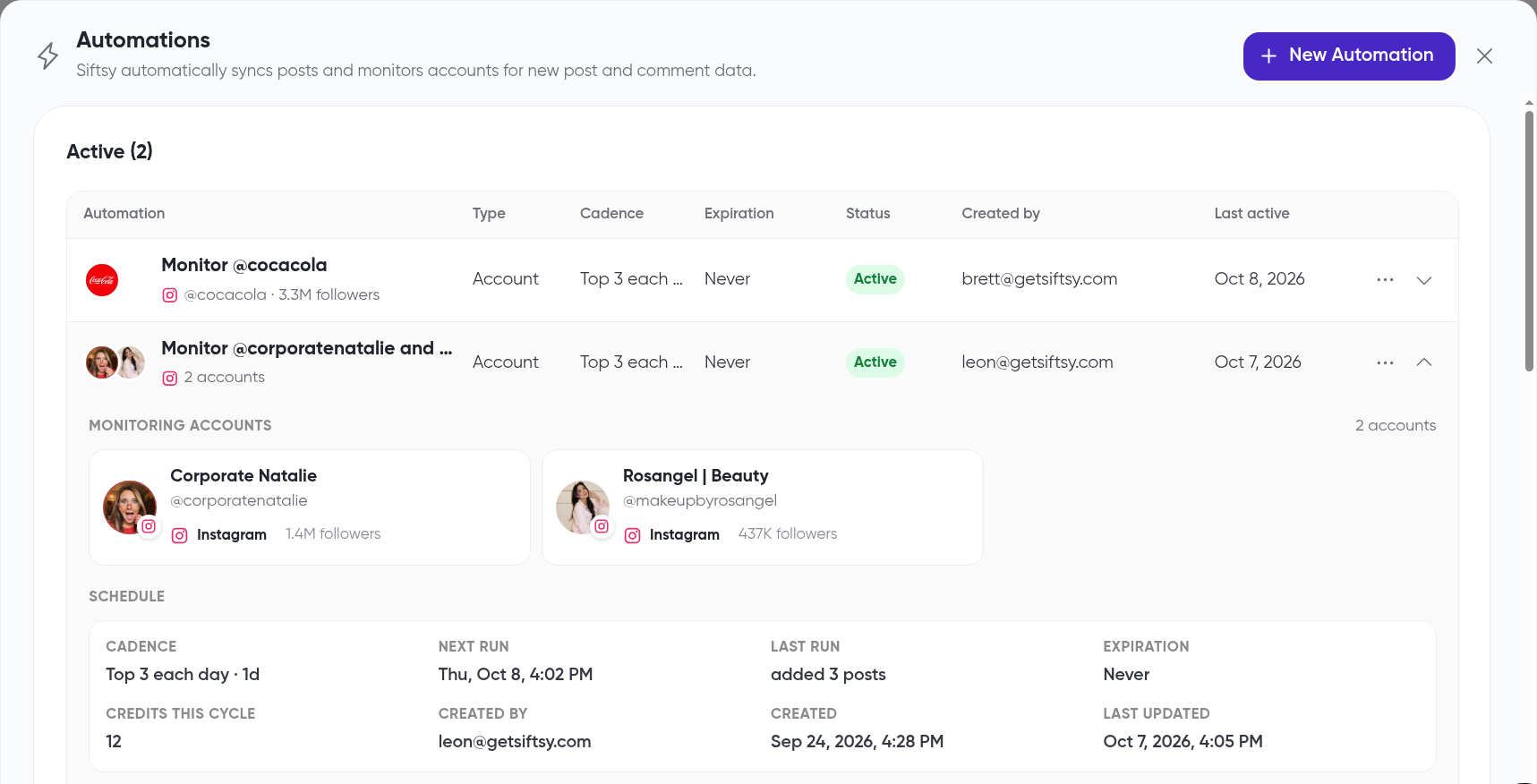
Click the chevron at the end of a row to expand it
Review the Schedule, including Next run, Last run, and Credits this cycle
Under Recent runs, click View posts to see what a run added or synced
Watch posts
Watch posts keeps comment analysis up to date on posts you've already analyzed.
In the Automations panel, click + New Automation
Select Watch posts, then click Continue
Enter an Automation name
Click choose a collection and choose what to watch
Collection — Every post in a collection
Posts — Search by account or caption and pick up to 50 posts. Manually uploaded posts can't be automated
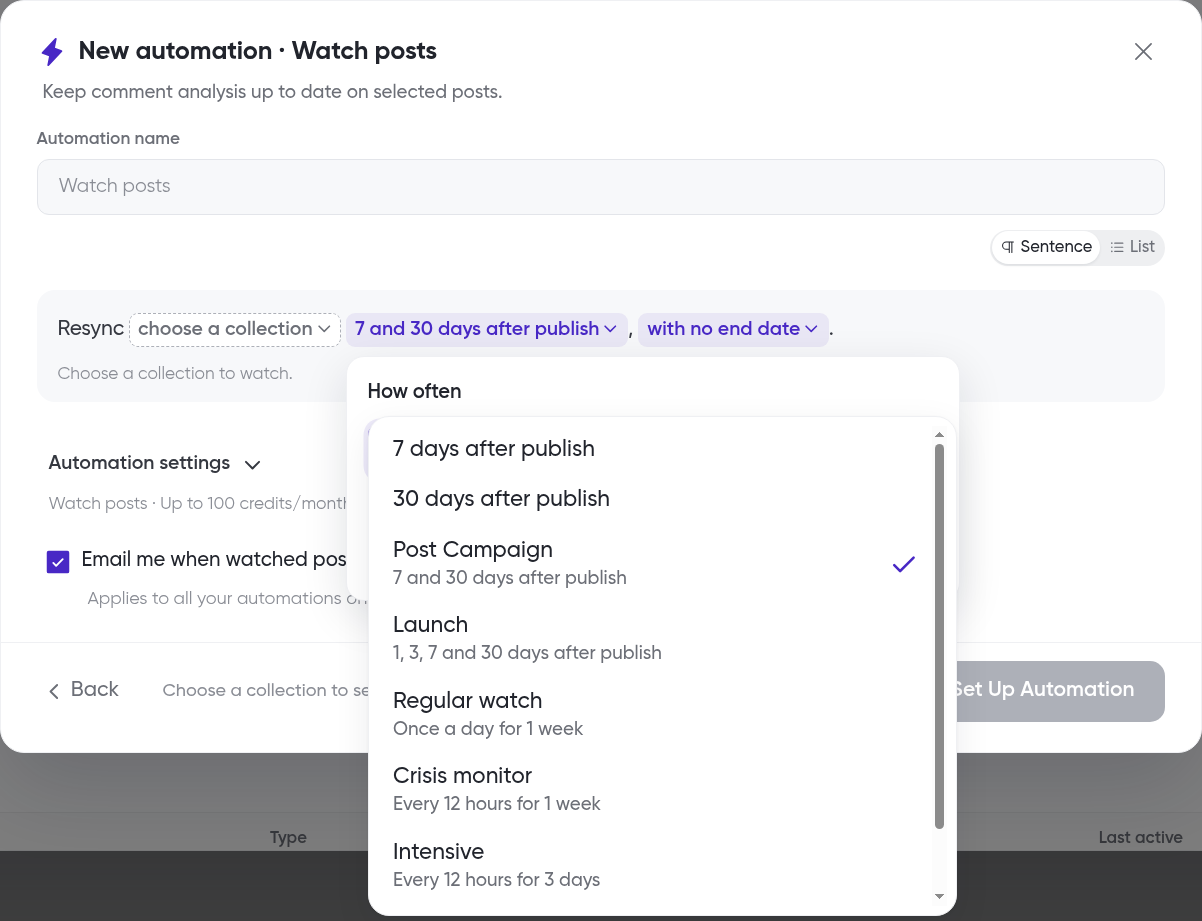
Click 7 and 30 days after publish and choose how often to sync
Post Campaign (default) — 7 and 30 days after publish
Launch — 1, 3, 7 and 30 days after publish
Regular watch, Crisis monitor, or Intensive — Daily or every 12 hours for a short window
Custom... — Your own refresh times
Click with no end date to choose when it ends: Never, In 1 week, In 1 month, In 3 months, or On a date...
Review the credit estimate, then click Set Up Automation
Automate posts from the post table
Open a collection and click Posts to open the post table
Check the box next to each post you want to watch
In the selection panel, such as 3 posts selected, click More actions (...), then click Automate posts...
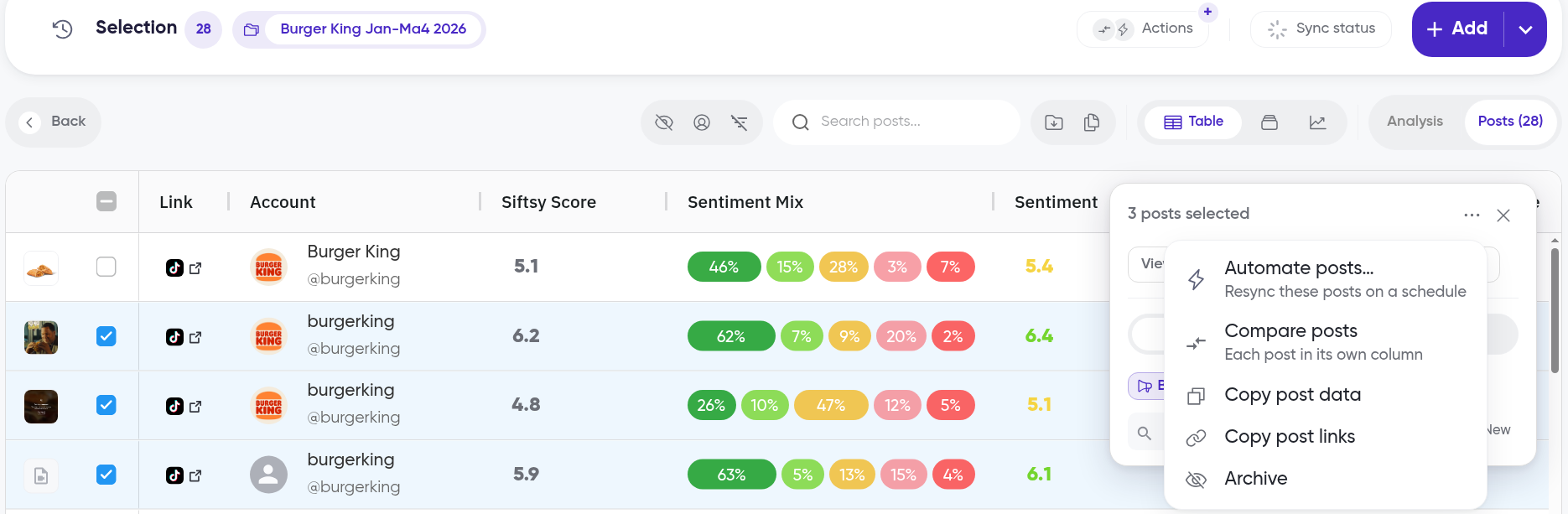
In the New automation dialog, review the prefilled Watch posts settings, such as "Resync these 3 posts daily until Oct 15, 2026." Click an option to change it
Check the credit estimate, such as "≈ 3 posts × 6 runs · ≈ 18 credits", then click Set Up Automation
Monitor accounts
Monitor account checks up to 5 accounts on a schedule, then adds and analyzes their new posts.
Click + New Automation, select Monitor account, then click Continue
Enter an Automation name
Click each highlighted option in the sentence to change it
Under Accounts (up to 5), choose an account or click + Add a new account
Leave a new collection to have Siftsy create one, or choose an existing collection
Choose the First run time, Right away or Scheduled, then click Set Up Automation
For example, Monitor @cocacola adds the top 3 @cocacola posts every day at 7:30 AM EDT.
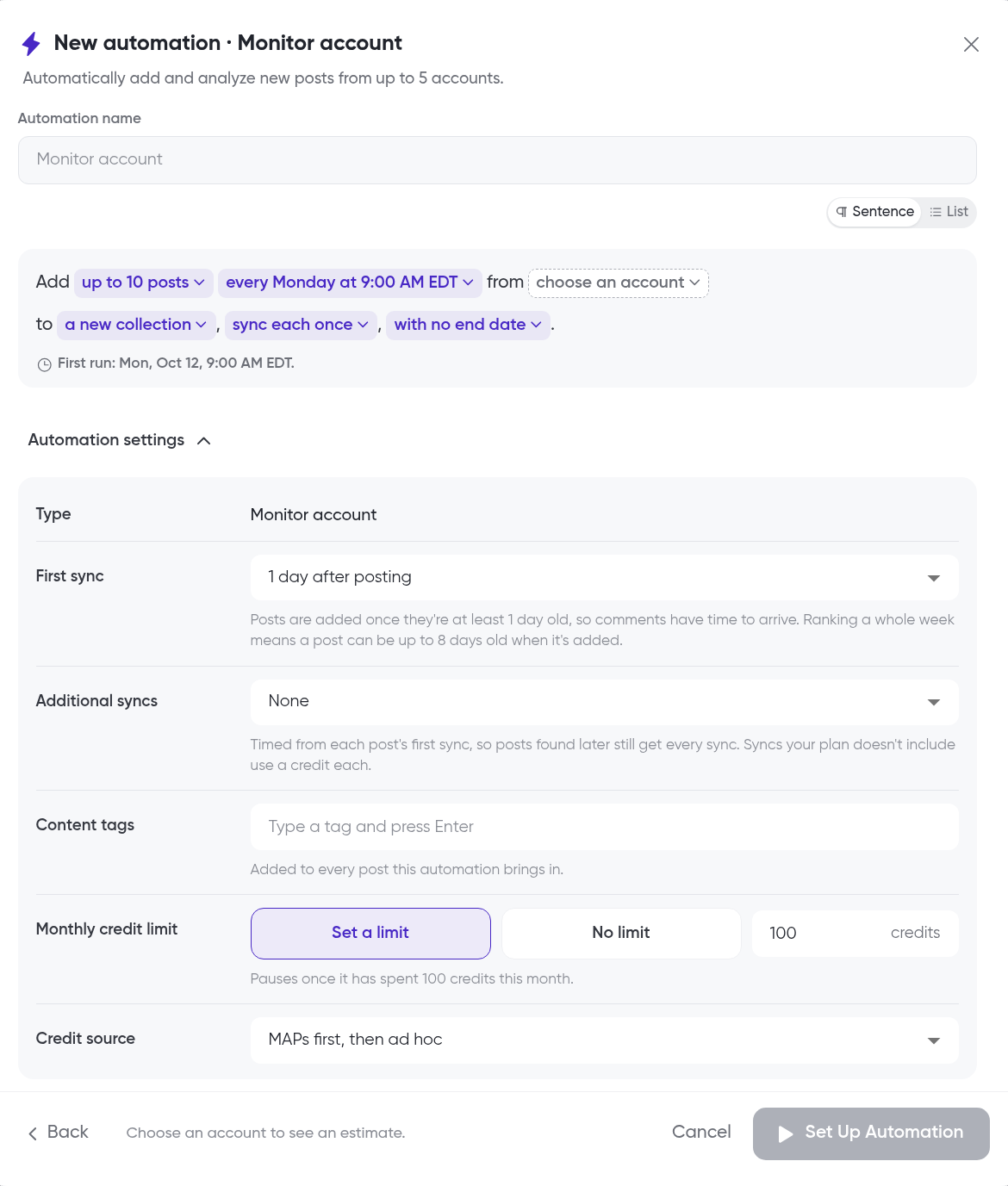
Prefer a list? Switch from Sentence to List above the schedule.
Monitor an account while adding content
Click the arrow next to Add Content, then under Add content click By Account
Search for the account
Click Monitor on the account's row
Accounts you already monitor show Monitoring and their cadence instead
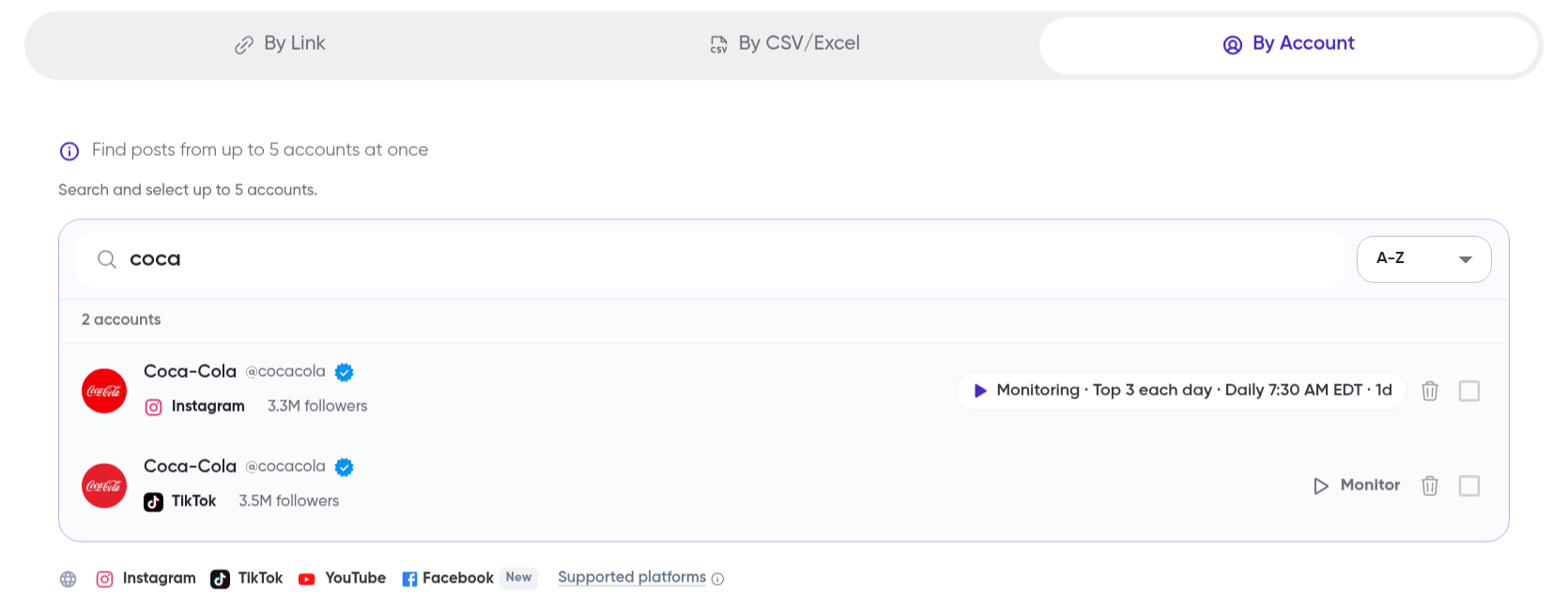
In the New automation dialog, review the prefilled Monitor account settings. For @cocacola, new posts go to a new "Monitor @cocacola" collection
Choose the First run time, Right away or Scheduled, then click Set Up Automation
Adjust automation settings
Expand Automation settings to fine-tune:
Monthly credit limit — Set a limit (100 credits by default) or No limit
Credit source — MAPs first, then ad hoc (default) or Ad hoc only
First sync and Additional syncs (Monitor account) — When new posts are synced
Content tags (Monitor account) — Added to every new post
Email me when... — Applies to all your automations on the team. Change it any time in Team Settings → Notifications
Pause or manage an automation
In the Automations panel, click the ... menu at the end of the automation's row
Choose an action, such as Pause
Paused automations stop running until you resume them. Completed automations appear under Past.
What's next
See what each sync updates in How to sync posts, or keep an eye on credit usage in How to track MAPs usage.